

Run Game Night in Character
A game master runs a Discord D&D night as a face swap video call, voicing every scene with a character face.
Examples
- D&D
- Murder mysteries
- Party games
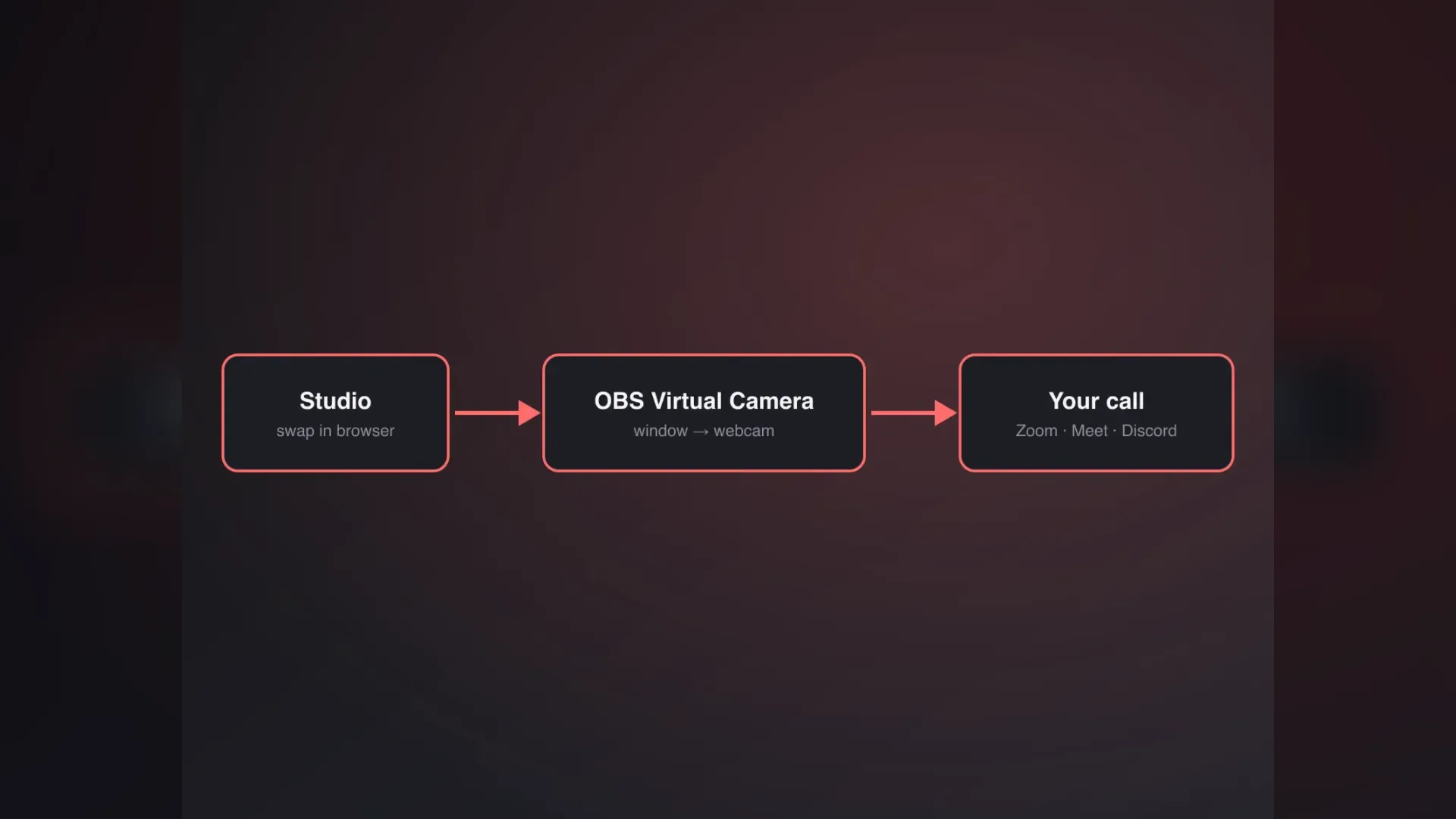
You can swap your face in a live call by sending the studio's output through OBS Virtual Camera, which Zoom, Google Meet and Discord all let you pick as your camera. Your webcam and one reference image go into the browser studio, which swaps your face live in a clean output window. OBS captures that window and passes it on as a webcam, so people on the call see the swapped face, not yours. The site adds no driver or app; OBS is the bridge between the studio and your call app.
Pick OBS Virtual Camera in each app.
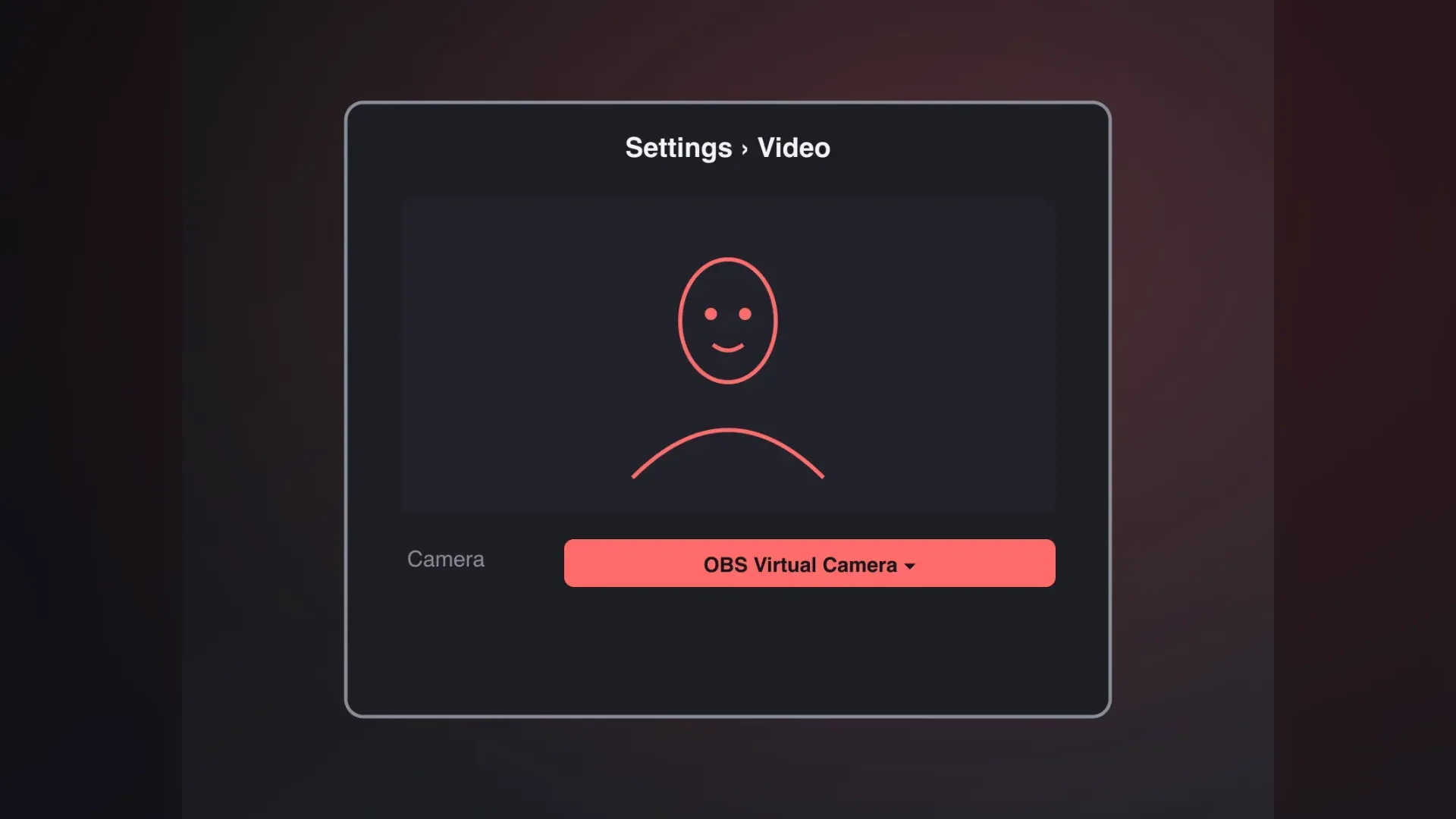
A face swap video call in Zoom takes one setting: under Video, choose OBS Virtual Camera. Face swap, Restyle and Try on run on Live X2.0.
Video Settings
Set the camera to OBS Virtual Camera.
Clean Picture
No studio buttons reach the meeting.
Whole Meeting
Everyone in the grid sees it.
Six things the studio handles around the call.
If the connection drops, the studio names the cause and reconnects once.
A pop-out shows only the swapped picture, ready for OBS to capture.
One live session at a time; end one face swap video call before the next.
Save WebM or MP4, depending on your browser, with an AI generated label.
Your camera feed isn't saved; recordings stay on your device.
Confirm you're 18+, hold rights to the face, won't impersonate, won't bypass ID checks.
Six setups where everyone on the call knows about the swap.
A game master runs a Discord D&D night as a face swap video call, voicing every scene with a character face.

A remote team lead opens the Zoom stand-up as a clay cartoon, a videocall face swap everyone expects.

A security trainer uses a colleague's consented face in a face swap video call to show staff a live swap.

An online teacher runs every face swap video call lesson on Google Meet as one ink-comic character.

A streamer rehearses a new character with a remote collaborator in a face swap video call on Discord before going live.

A hobby group member joins the Zoom meetup with a character face, tells the host, and stays private.
Pick a face, open the clean window, then route it through OBS into your face swap video call.
Preview free, then pick a library face or upload one you have rights to.
Sign in with Google, tick four confirmations, and a clean output window pops out.
Window-capture the pop-out, click Start Virtual Camera, then pick OBS Virtual Camera in your call.
Setup, credits, limits and rules.
Live face swap reaches your call in four links: browser studio, clean output window, OBS Virtual Camera, call app. OBS passes the studio's swapped picture on as a webcam.
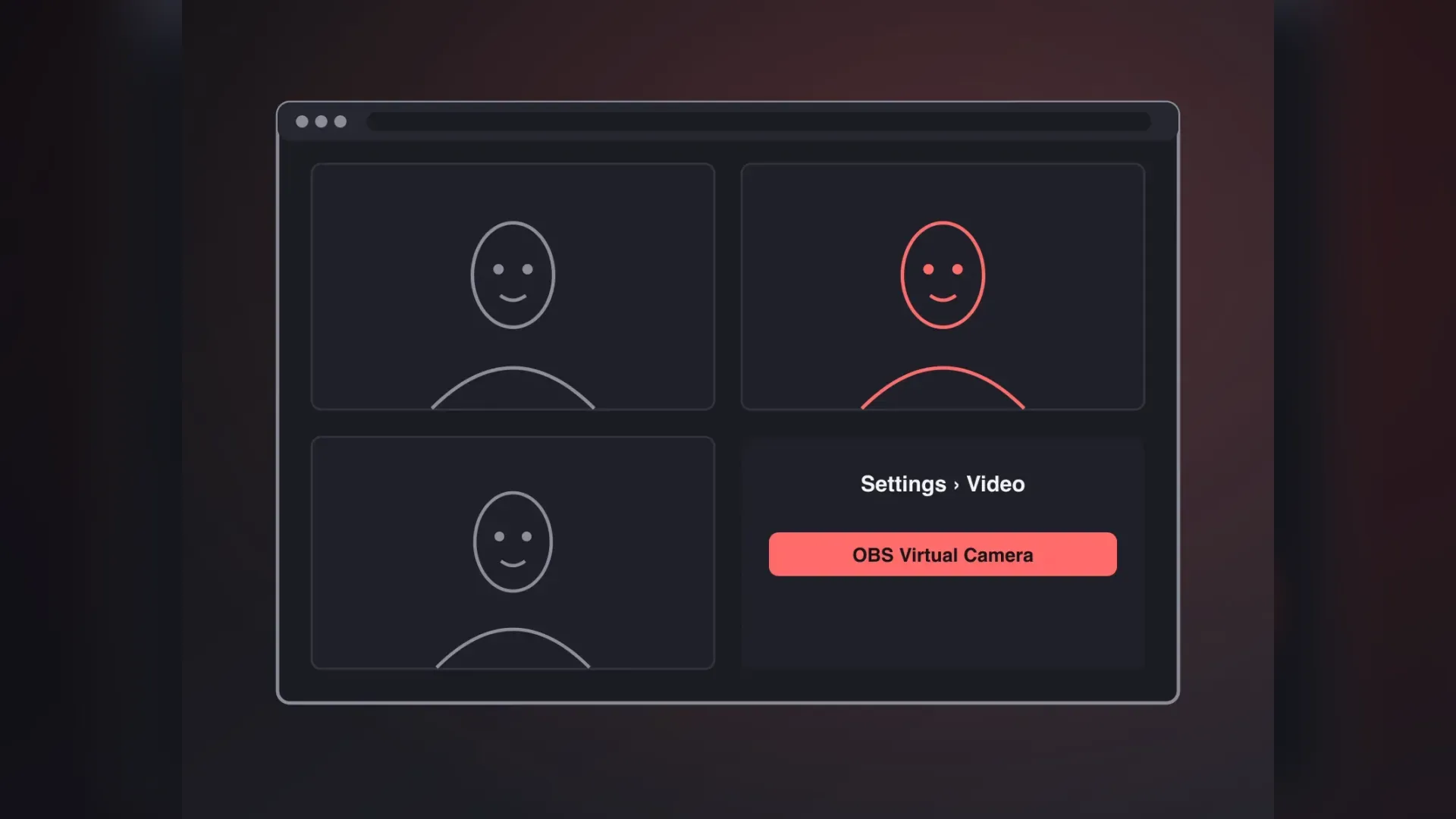
In Zoom you only need to change your camera. Start the swap, capture the clean output window in OBS and click Start Virtual Camera. Then open Zoom's Settings, go to Video and choose OBS Virtual Camera as the camera.
Google Meet uses the same OBS route. With OBS Virtual Camera running, open Settings in Meet, choose Video and pick OBS Virtual Camera. Keep the studio's output window open, since OBS captures that window.
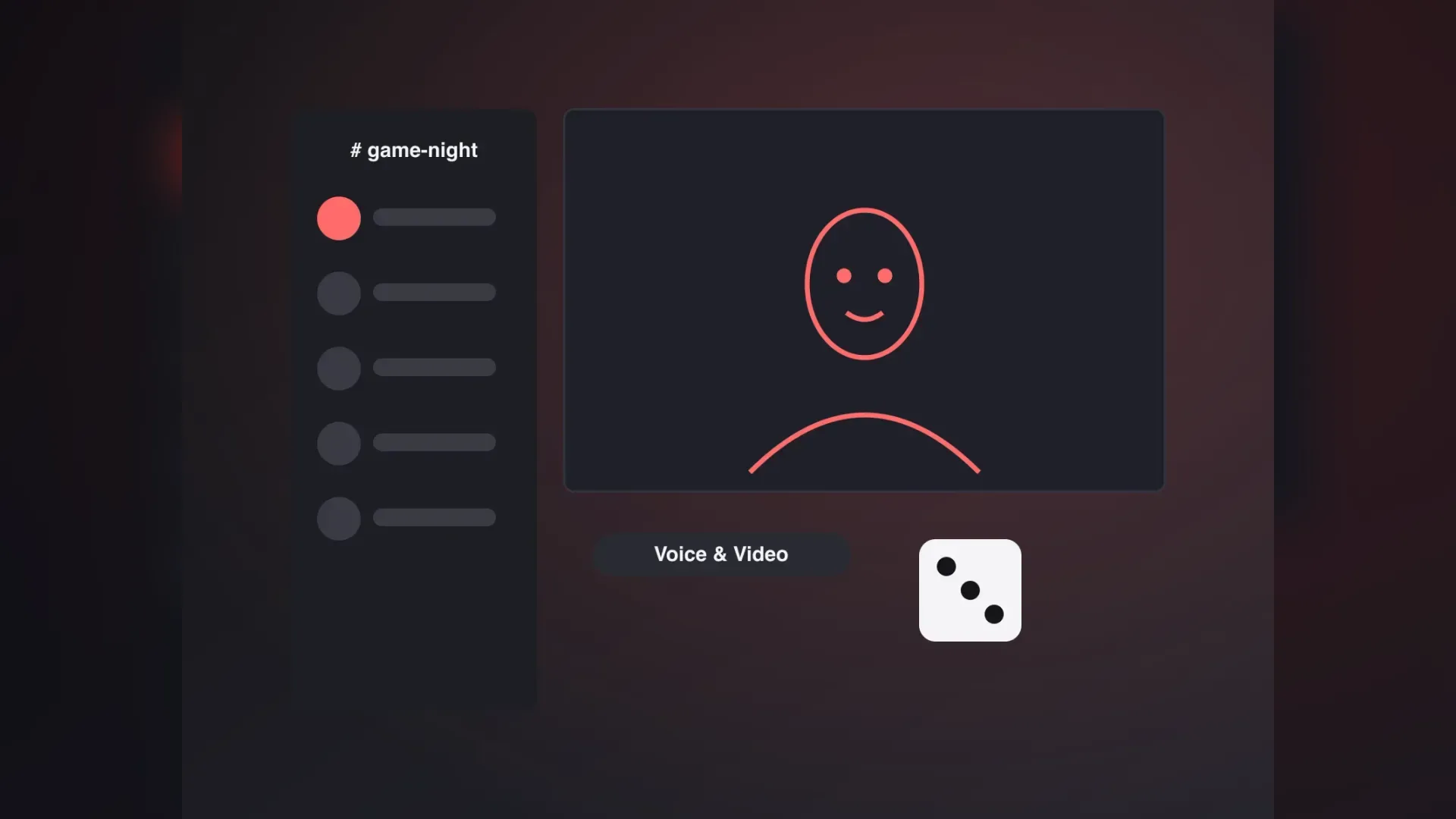
Discord calls can pick up the swap through OBS Virtual Camera. In User Settings, open Voice & Video and choose OBS Virtual Camera, then turn your camera on in the call.
No. You only need our browser studio plus the free OBS Studio, which supplies the virtual camera.
Yes. The camera preview is free and needs no sign-in. A live session uses credits and a Google sign-in. New accounts get 180 credits once, valid 30 days, about 3 minutes of Live X2.0 at 1 credit per second. Credits are held when you start, and any you don't use come back once the session ends and usage is confirmed.
A dropped connection gets one automatic reconnect, and the studio shows the cause on screen. Camera, picture and balance errors are named too. One account runs only one live session at a time, so end one before starting another.
Other people see the swapped face, so let them know. Before starting, you confirm you're 18+, have rights to the face, won't impersonate anyone and won't bypass identity checks. The Terms prohibit deceiving people about who is on camera; recordings carry an AI generated label.
Yes. Using a face swap video call for client demos or paid presentations counts as commercial use, which the Business plan includes. The usual rules still apply: use a face you have rights to and tell the meeting it is a face swap.
The studio overview and the OBS webcam setup.

Run a face swap video call: swap your face in the browser, then bring it into Zoom, Google Meet or Discord through OBS Virtual Camera.
Swap your face in the browser, then let OBS Virtual Camera carry it into a face swap video call as your webcam.
The live face swap studio is opening soon. Your click is counted, and nothing was recorded or sent.